
ニュース
faint stencil fix
My Tattoo Stencil Printer Prints Too Light / Faint Lines — How Do I Fix It?
A stencil that prints too light is almost never a broken printer. Work this order: remove the protective tissue and confirm the dye layer faces the thermal head, raise the Deepness/darkness setting one step, re-export your design as pure black-and-white (threshold, no gray), and print a 2–3 cm test strip. Nine times out of ten, the next sheet comes out dark and clean.
Diagnose first: the 7 real causes of faint stencils
Every pale stencil traces back to one of seven causes. Diagnose before you touch a setting — the printer is usually the least guilty part of the chain.
Cause
What's happening
The fix
Darkness set too light
The machine is sitting on its lightest Deepness mode — or the app's darkness slider is near the bottom. It's doing exactly what it was told to do.
Raise Deepness/darkness one step at a time and reprint the test strip. Counterintuitive but true: fine-line work usually wants the heavier setting, because thin strokes carry less dye per millimeter than bold ones.
Protective tissue left on
That thin translucent sheet between the top sheet and the dye layer is there to protect the paper in the pack — it also blocks heat. Printing through it gives you a ghost of a stencil.
Peel it off before printing. Check your paper brand's instructions: some papers print with it removed, and this is the single most common rookie cause of "blank or faint" output.
Paper loaded backwards
Thermal stencil paper is a four-layer sandwich — master/transfer top sheet, protective tissue, carbon/dye layer, and stiff backing sheet. Loaded backwards, the thermal head fires its heat at the wrong side of the sandwich and the dye never gets hot enough to activate. The machine feeds fine and prints nothing useful.
Dye (purple/carbon) layer toward the thermal head; the white top sheet is what receives your design. When in doubt, peel a corner and identify the layers before loading.
Gray or anti-aliased source file
A thermal head reads gray as "half heat." Soft gray fills, photo textures, and anti-aliased edges come out as faint, broken speckles instead of solid lines.
Export pure black-and-white: threshold or bitmap mode, background pure white, no gray fills. Replace shading with hatching. Keep final-size strokes at least 0.4–0.6 pt — anything thinner may not generate enough heat to transfer.
Dirty thermal head or rollers
Dye residue and carbon dust on the head strip insulate it, so parts of the head fire weakly. You get patchy, uneven faintness rather than a uniformly pale sheet.
Fully power off and unplug the machine, let the head cool, then wipe the strip in one direction with a cotton swab lightly dampened with isopropyl alcohol (no stronger than 70% — stronger solvents or hard scrubbing can damage the protective glass coating over the heating elements). Let it dry fully. Wipe the feed rollers too — and if the paper still feeds loose or uneven after cleaning, the feed mechanism has lost tension, which is a hardware repair issue, not a settings problem.
Low battery (wireless machines)
Thermal heads are current-hungry. On a low charge, the head can't reach full temperature and everything prints a shade lighter than your setting asks for.
Print on a full charge. If you run a busy station, keep a second battery on the charger.
Old or heat-damaged paper
Thermal dye is heat-sensitive. Paper left in a hot car or near a radiator pre-activates the dye — by the time you print, there's nothing left to activate, and the lines come out washed out.
Store sheets flat, cool, and sealed; use oldest packs first. Humidity and cold storage both affect thermal sensitivity too — damp sheets print blotchy and cold-stored sheets need to reach room temperature before printing. When a stencil suddenly goes pale on a file that printed fine last week, try one sheet from a fresh sealed pack before blaming the machine.
The 60-second fix order (do it in this sequence)
Tissue and orientation. Peel the protective tissue; confirm the dye layer faces the thermal head. Costs nothing, fixes roughly half of all "too light" cases.
Bump darkness one step. One step, not max. Print again — over-darkening floods tiny gaps in fine linework.
Test strip. 2–3 cm of the design, every time, before committing a full sheet. Thirty seconds of testing beats a wasted sheet.
Re-export the file. Threshold it to pure black-and-white. In the printer app, choose the Line/line-art print mode for linework — the Image/photo mode runs dithering algorithms that reintroduce the gray you just removed. If the on-screen art has any gray, the printer will show you exactly that gray — faintly. And send PNG, not JPEG: phone stencil apps that re-compress on import sneak compression grays back into your clean file. If your app has an "optimize" or compression option, turn it off.
Fresh sheet. One sheet from a sealed, cool-stored pack. Rules out heat damage and stale dye in one move.
Clean the head. Fully power off and unplug, alcohol swab (70% or less, one direction, gentle), full dry. If you print daily, make this a weekly habit.
Full charge. Wireless machine? Top up the battery and reprint before concluding anything about the hardware.
Your source file is the printer's eyes
Here's the part most troubleshooting guides bury: the printer reproduces exactly what you send it — feed it gray and you get gray, faintly. The artists who never fight faint stencils all do the same boring prep:
Convert the design to solid black line work before it ever touches the printer app. Stencil apps with a threshold or levels tool do this in seconds.
Export at 300 dpi, pure black on pure white. Background must be white, not "almost white."
Kill gray fills; use hatching for tone. Thermal paper prefers high-contrast edges.
Check line weight at final print size. Hairlines that look fine on a phone screen can drop below what a 200–300 dpi thermal head can activate — which is exactly why fine-line artists print on the heavier Deepness setting, not the lighter one.
One more file trap: mirror settings and scale don't cause faintness, but they cause reprints. Set scale to 100%, no "fit to page," and mirror once, correctly.
Deepness settings, translated
Almost every thermal stencil printer has two heat levels — Deepness I and Deepness II:
Setting
What it does
Use it for
Deepness I (light)
Less heat, less dye activation
Bold linework and large fills where you want a lighter transfer that won't overpower the tattoo
Deepness II (heavy)
More heat, more dye activation
Fine line, micro-realism, and detail work — thin strokes need the extra heat to deposit enough dye
If your faint-stencil problem is only in the thin lines while the bold outlines print fine, you're almost certainly on Deepness I. Flip to II and the fine lines catch up. (And if your problem is the opposite — everything lands too dark — our companion guide on stencils that print too dark walks the same chain in reverse.)
When it's the machine, not the method
Run the full fix order — fresh sealed sheet, clean head, full battery, re-exported threshold file — and the stencil still comes out pale at maximum darkness? Then you're looking at a worn thermal head, and no setting recovers a dead head. That's a repair-or-replace decision, not a settings problem.
This is also the point where hardware choice starts to matter. If you've run the full fix order and still need finer control over density, a machine with a screen lets you see the density change as you dial it in and preview the result before you print. On button-only machines, you're guessing between two coarse steps and burning a sheet per guess. Our pick for the station, the INKSOUL T08FD, gives you that on-screen control before you print — and a battery indicator you can actually read, so a low charge never surprises you mid-session. Beyond the faint-print question, it's also the station favorite for the INKSOUL-exclusive colorway and a failure rate far below the previous generation. The older T08FS remains the classic workhorse with a deep bench of artist reviews behind it.
If faint prints are a recurring fight despite correct files and paper, shop for these four things: on-screen density preview (see the change before you print), real darkness steps (not two coarse guesses), a battery indicator you can actually read (so low charge never surprises you mid-session), and an app with threshold tools built in (so the file fix happens before the print, not after). Pair the printer with paper matched to your linework — LP100 for crisp line work, SP100 when you need shadow detail to survive — or the full transfer workflow bundle if you're setting up a station from scratch.
FAQ
Why are only my thin lines faint while the bold outlines print fine?
Thin strokes deposit less dye per millimeter, so they need more heat to show up. You're almost certainly on the lighter Deepness setting — flip to Deepness II (the heavier one) and reprint the test strip. This is the single most common "fine line prints pale" cause, and it's a setting, not a defect.
I raised darkness to maximum and it's still pale. Now what?
Stop raising it — max heat won't fix a file or paper problem, and running everything at max shortens head life. Re-export the design as pure black-and-white (threshold mode, no gray), then print one sheet from a fresh sealed pack. If that sheet is dark, your problem was the file or stale paper, not the darkness setting.
Will a higher DPI setting fix faint lines?
No. DPI changes dot density, not dye activation — a 300 dpi gray line is still a gray line, and the thermal head still reads it as "half heat." Contrast and darkness fix faintness; DPI only matters once the contrast is already right. If someone tells you to buy a higher-DPI printer to fix pale stencils, they're selling you a printer, not a solution.
The same file printed fine last week but pale today. What changed?
Almost always paper or head, not the file. Thermal paper left somewhere warm pre-activates its dye, and a head that picked up residue over a week of printing fires unevenly. Print the fix order: fresh sealed sheet first (rules out paper in one move), then clean the head.
Can running max darkness damage my printer?
Constantly maxing the heat accelerates thermal head wear — the head is a consumable with a finite life. The professional habit is the lightest setting that transfers cleanly, verified with a 2–3 cm test strip. Save max heat for the jobs that actually need it.
paper feed
ステンシルプリンターが転写紙を認識しない時の対処法
プリンターは壊れていません。ほとんどの場合、単に紙を認識できていないだけです。印刷できない赤ランプの点滅は、十中八九、用紙のセットか紙自体の問題です。用紙が斜めに入った、裏表が逆、センサーの窓にホコリがたまっている、または湿度で紙が反っている。まっすぐセットし直し、センサーの窓を乾いた綿棒で拭き、電源を入れ直せば、通常5分以内にエラーは解消します。
紙検知の仕組み(となぜ失敗するのか)
サーマルステンシルプリンターは、給紙口近くの小さな光学センサーで用紙の先端を見ています。先端が斜めになっていたり、裏返しだったり、湿度で反って変な角度で入っていると、センサーは「用紙なし」と報告し、プリンターは起動を拒否します。画面のないモデルでは、こうした微妙な違いがすべてひとつのメッセージに圧縮されます。赤ランプの点滅です。
ほとんどのガイドが書かない裏話があります。私たちのアフターサポートチームはこの問い合わせを常時受けていますが、結論はほぼいつも同じです。アーティストが「プリンターが死んだ」と思う赤ランプは、ハードウェアの故障ではなく紙認識の問題です。機械は正常です。ただ見えているものを信用できず、安全策として転写紙を噛み砕くより停止を選んでいるだけなのです。
5分で直す手順(この順番で)
この順番で進めてください。各ステップで次に可能性の高い原因を潰していくので、ステップ5の前に「プリンターが死んだ」と決めつけて先に進まないでください。
電源を切り、用紙を抜いて、まっすぐセットし直す。「用紙なし」の誤検知の原因ナンバーワンは、わずかに斜めに給紙された用紙です。押し込んで祈るだけではダメです。用紙ガイドに直角に合わせ、中央に保ち、水平に送り込みます。この世代のサーマルステンシルプリンターでは、わずかに斜めに入った用紙が誤検知と紙詰まりの両方の典型的な引き金です。
表裏と向きを確認する。サーマルステンシルペーパーには、プリントヘッドが向くべきコーティング面があり、プリンターのセット図の通りに装填したときだけ機能します。裏返しの用紙は「昨日は動いたのに今日は動かない」という典型的なミスです。変わったのは、どちら側を先に入れたかだけです。
センサーの窓を乾いた綿棒で拭く。アルコールもエアダスターも使わず、口で吹くのもNGです(湿気で悪化します)。紙粉はあっという間にたまります。特にロールから自分でカットしている場合は。一度やさしく拭うだけで十分なことがほとんどです。
新しい平らな用紙に替える。湿気の多いスタジオで開封したまま数週間置いた用紙は反ります。反った先端はセンサーに間違った角度で届きます。特定の用紙だけで失敗するなら、犯人はプリンターではなく紙です。保管が重要なのもこのためです。用紙は密封して湿度から遠ざけてください。私たちのLP100とSP100は密封・遮光包装で出荷しています。開封したパックは徐々に劣化していくからです。
アプリの用紙設定を確認してから、完全に電源を入れ直す。アプリがA4だと思っているのに210 mmのロール紙をセットしている(またはその逆)と、プリンターとソフトウェアが別の会話をしています。設定を実際にセットしたものに合わせてから、プリンターを完全にオフにして30秒待ち、オンにします。設定メニューに紙センサーのキャリブレーションがあるモデルもあります。ハードウェア故障と決めつける前にマニュアルを確認してください。
赤ランプが本当に伝えていること
画面のないプリンターでは、点滅パターンが機械の語彙のすべてです。だから単なるセンサーの見落としが「プリンターが死んだ」ように感じるのです。マニュアルから点滅を解読するのが楽しいスタジオの一日になるはずがありません。
タッチスクリーンがその価格に見合うのはまさにここです。ちゃんとしたディスプレイのあるプリンターでは、何も解読する必要はありません。画面が何が悪いのかを平易な言葉で教えてくれる(「用紙が検知されません」)ので、推測する代わりに直せます。こうした機械のトラブル対応を生業にしているなら、クライアントの予約を救った最初の1回で元が取れる違いです。
繰り返すなら紙を疑う
同じプリンターがあるパックでは正常に動き、別のパックでは言うことを聞かないなら、プリンターを責めるのはやめましょう。安い、または品質にばらつきのある転写紙は、まさにこうした幽霊のような不具合の原因になります。ロットによってばらつくコーティング、真っ直ぐに切られていない用紙(1 mmの歪みで先端がセンサーに誤って届く)、スタジオの湿度に触れた途端に反る在庫などです。
実用的な解決策は地味ですが効果的です。プリンターと用途に合った紙を使いましょう。私たちの機械なら、シャドウやブラック&グレー作品にはSP100、クリーンなライン作業にはLP100、大きな作品には210 mm × 30 mロールです。真っ直ぐに切り、まっすぐ送り、密封して保管しましょう。
購入チェックリスト:診断しやすいプリンターを選ぶ
新しいステンシルプリンターを買うなら、「何か起きたときにどうなるか」は印刷品質と同じくらい重要です。以下をチェックしましょう:
点滅コードではなく読めるステータス。何が悪いかを教えてくれるタッチスクリーンは、PDFマニュアルで解読しなければならない赤色LEDに勝ります。
まっすぐな給紙経路と本物の用紙ガイド。用紙を直角に合わせられるガイドこそが、上のリストの原因ナンバーワンを防ぎます。
A4と210 mmロールの両対応。片方の幅しか使えないプリンターは、いずれ大きな作品で苦労します。
メニュー内のセンサー自己診断やキャリブレーション。センサーを再学習できる機能は、機械を送り返すより優れています。
同じエコシステムの、密封パックの適合紙。紙とプリンターを同じプラットフォームで揃えれば、「用紙か機械か」の推測ゲームがなくなります。
RMAフォームではなく10秒の動画を求めるアフターサポート。検知の問題のほとんどは、千回見てきた人が見れば数秒で視覚的に診断できます。
クイックリファレンス:症状 → 原因 → 対処
症状
最も可能性の高い原因
対処法
赤点滅、用紙が送られない
用紙が斜めにセットされている
ガイドに直角に合わせてセットし直す
昨日は動いたのに今日は動かない
用紙が裏返し/表裏が逆
プリンターのセット図に合わせる
ロール紙をカット後にランダムに失敗する
センサーの窓のホコリ
乾いた綿棒で一度拭う
特定の用紙でのみ失敗する
反り・湿気・規格外のロット
新しい平らな用紙に替え、密封保管する
アプリとプリンターの認識が食い違う
用紙サイズ設定の不一致
A4と210 mmロールを合わせてから電源を入れ直す
上記すべてで改善しない
センサー自体の故障
短い動画を添えてアフターサポートに連絡する
私たちのおすすめ:INKSOUL T08FD
点滅パターンの解読にうんざりしているなら、INKSOUL T08FDがフラッグシップであるのには理由があります。何が悪いかを平易な言葉で教えてくれるスマートタッチスクリーン、真のシャドウ・シェーディング印刷(画面で見たものがそのまま肌に載る)、スマホやPCからのワイヤレス印刷、A4と210 mmロールの両対応、そして旧世代よりはるかに低い故障率。T08FSは実績のあるモデルが欲しい方には、同じシャドウ印刷機能を持つクラシックな定番機です。タトゥープリンターコレクションとステンシルペーパーコレクションの全ラインナップもご覧ください。
関連記事
サーマルタトゥー転写プリンター vs 転写紙:シャープなラインはどっち?
安い vs 高いタトゥーステンシルプリンター:実際何にお金を払っている?
プロ仕様のタトゥーステンシルプリンターのおすすめは?
FAQ
センサーが断続的に失敗し続けてもプリンターを使い続けられますか?
使えますが、用紙を無理に押し込んだり、エラーの上から印刷ジョブを実行したりしないでください。紙の無駄と紙詰まりのリスクが増すだけです。特定の用紙に追随する断続的な失敗は紙の問題、どの用紙でも起きる失敗は汚れたセンサーやずれたセンサーの問題です。症状ではなく原因を直しましょう。
ロール紙はカット済み用紙より検知エラーが多いですか?
本質的には違います。ロール紙が問題になるのは、切り口が真っ直ぐでないか、先端が反っているときだけです。定規を当ててきれいに切り、最初の数センチを平らにして、用紙と同じように送り込んでください。
夏になるとプリンターの失敗が増えるのはなぜですか?
湿度です。サーマルステンシルペーパーは湿気を吸って反り、歪んだ先端をセンサーに届けます。スタジオが湿っぽい場合は、開封したパックを乾燥剤と一緒に密封保管し、用紙を給紙口に入れたまま一晩置かないでください。
用紙は送られるのに薄い・空白のラインしか印刷されません。同じ問題ですか?
いいえ、それは濃度やプリントヘッドの問題で、検知の問題ではありません。用紙が送られてプリンターが動くなら、センサーは仕事をしています。そちらはサーマルプリンターと転写紙でシャープなラインを得るガイドをご覧ください。
buying guide
安い vs 高いタトゥーステンシルプリンター:差額の正体
結論から言います:$60から$200のワイヤレスサーマルステンシルプリンターはほぼすべて同じ203dpiのプリントエンジンを積んでいるので、あなたが支払っているのはよりシャープなラインではありません——支払っているのは品質管理、熱制御、使えるアプリ、そしてヘッドがいつか寿命を迎えたときのサポートです。$60の無名機も初日はきれいなラインを印刷できます。差が出るのは半年後です。一方はセッション中に2回紙詰まりし、もう一方は相変わらずくっきりしたステンシルを出します。
どのスペック表も同じに見える理由
サーマルステンシルプリンターを5機種並べると、数字はコピペのようです:203dpi、1200mAhバッテリー、13–15mm/sの印刷速度、≤216mmの印刷幅、スマホはBluetooth、PCはUSB。これは偶然ではありません——この業界のこの一角は、少数の共有OEMプラットフォームの上に成り立っています。INKSOULのT08FSとPhomemo M08Fも同じプラットフォームから生まれ、$60–$90のAmazon汎用品の多くは中身は同じで外装プラスチックが安いだけです。
エンジンが共有なら、何が差別化要因として残るでしょうか?スペック表には絶対に出てこない3つのことです:
プリントヘッドの品質管理。サーマルヘッドは微小な発熱素子の列です。良いロットではすべての素子が同じ温度で発熱しますが、悪いロットでは紙の片側に薄い斑が毎回出ます。価格の高い機種は、弱いヘッドを実際に弾くラインから来ています。
ファームウェアの濃度カーブ。良いプリンターはライト、モデレート、シックの濃度モードを切り替えられます。その切り替えが、極細ドットワークを潰さず印刷するステンシルと、3RLのラインが9RLに見えるステンシルの違いです。
壊れたときにメールに返信してくれる人がいるか。サーマルヘッドは消耗品です——どのヘッドもいつかは死にます。サポートのあるブランドなら、ヘルプ、部品、最低でも掃除方法の回答がもらえます。無名機の場合、答えは「もう一台買ってください」です。
価格差で実際に買えるもの
当店に返ってくる実績を基に、各価格帯の内訳は実際にはこうなります:
価格帯
価格レンジ
得られるもの
超格安汎用品
$60–$90
紙の上では同じ203dpiエンジンですが、ヘッドのばらつき、薄いプラスチック、不安定なBluetooth、予告なく変更や課金壁が追加されるアプリ。サービス窓口なし。
実績のある中級(T08FS、Phomemo M08F)
$160–$170
同じプラットフォームに本物の品質管理と大きな導入実績。例えばT08FSは当店で約990件のレビューを獲得しています——実世界でそれだけ多くの紙が通ったということです。
画面付きフラッグシップ(T08FD)
約$189
上記のすべてに加え、オンボードスクリーン(設定変更のためにアプリを探す必要なし)、限定カラー、そして当店の返品データでは旧型FSより目に見えて低い故障率。
計算を見てください:実績のある中級からT08FDへのステップは約$20です。汎用品から中級へのステップこそ、本当のリスク削減が起きる場所です。
$60プリンターの隠れたコスト
紙の無駄。転写紙は1枚ごとに本当にお金がかかります。セッション中に2回紙詰まりや位置ずれを起こすプリンターは「節約」を静かに食いつぶします——詰まった紙はステンシルも、サイズ調整に費やした15分も無駄にします。背中や腕全体のロール紙ワークフロー(T08FDは210mmロール紙対応)では、給紙ミスの無駄はさらに大きくなります。
アプリの課金壁。これは意外に思う方が多いです。格安プリンターの中には、便利な機能——シャドウフィルター、ライン抽出、大判画像の分割——が有料サブスクリプションの向こう側にあるアプリとペアリングするものがあり、プリンターのマーケティングはその部分をそっと省略しています。購入後ではなく購入前に、アプリのどこがロックされているか確認しましょう。
シャドウ印刷なし。柔らかなシェーディングのグラデーションを印刷できることは、現行世代と旧在庫を分ける機能です。熱を変調できるヘッドのハードウェアと、画像を前処理するアプリのフィルターの両方が必要です。多くの格安機や旧設計は硬い黒のラインのみです。リアリズム、ウィップシェーディング、マイクロファインラインがあなたの領域なら、シャドウ対応を明示的に確認しましょう。
ヘッドがユニットそのもの。サポートのないプリンターでサーマルヘッドが死んだら、交換するものは何もありません——マシンは文鎮です。その$60の価格が通用するのは一度きりです。
内部者チェックリスト:サーマルステンシルプリンター購入前に確認すべきこと
ヘッドのメンテナンスは誰がする?掃除方法を聞きましょう(答え:アルコールを染み込ませた綿棒、ウェットティッシュや溶剤は厳禁——水と強力な化学物質はヘッドを殺します)。交換品は存在するかも確認。
シャドウは印刷できる?それともラインのみ?暗示ではなく、書面で確認を。
濃度コントロール。ライト/モデレート/シックモードは成熟したファームウェアの証——そして潰れたラインの修正策です。
アプリの経済性。まずアプリをダウンロードしましょう。プレミアム機能がサブスクリプションでロックされているなら、その分を価格に織り込みます。
PC接続。ほとんどの機種——大手ブランドも含め——はBluetoothでスマホ/タブレットのみ接続し、PCはUSBが必要です。ワークフローがすべてデスクトップなら、箱の中のケーブルがそれです。
紙の互換性。標準的な4層A4サーマル紙が問題なく通ること。理想は大判作品用のロール紙も。
レビューの数、スペック表ではない。数百件の検証済みレビューは、ヘッドが悪ければ大声で文句を言うはずの数百人の所有者を意味します。スペック表はそれを偽造できません。
おすすめ
おすすめはT08FDです。当店価格$188.88——実績のある中級より約20ドル高いだけで、オンボードスクリーン、INKSOUL限定カラー、シャドウ印刷対応、そして当店が扱ってきたステンシルプリンターの中で最も低い故障率が手に入ります(旧型FSも信頼できますが、FDは返品が測定可能なほど少ないです)。
賢い予算選択:$168.88のT08FS。クラシックです——同じコアプラットフォーム、シャドウ印刷対応、約990件のレビューはこのカテゴリーで最強の信頼シグナルです。画面が不要なら、その分お金が残ります。
正直に言うと:Phomemo M08FはFS/FDと同じOEMプラットフォームを共有しています——当店でも$168.88で扱っています。既にお持ちなら、ステンシルを阻んでいるのはエンジンではなく、濃度設定と紙です。ちなみに:ほとんどのスタジオで最も安い本当のアップグレードは新しいプリンターではありません——良い紙です。そのことはこちらに書きました。
よくある質問
高価なステンシルプリンターほどシャープなラインを印刷しますか?
いいえ——解像度の上限は同じです。このクラスのすべての機種は203dpi、1ドット約0.13mmで印刷します。お金で買えるのは一貫性です:ヘッドのすべての素子が均等に発熱すること、細いラインを細いまま保つ濃度モード、紙詰まりの少なさです。
サーマルプリントヘッドの寿命は?
正直な共通の数字はありません——印刷量と手入れによります。ヘッドはアルコールを染み込ませた綿棒で定期的に掃除し、給紙経路に紙粉を溜めず、濡れた布や強い溶剤でヘッドを拭かないでください。掃除後も毎回同じ薄い筋が現れるようになったら、ヘッドは寿命です。
格安プリンターでシャドウは印刷できますか?
通常はできません。シャドウ印刷には、熱を変調できるヘッドとグラデーションを変換するアプリのフィルターの両方が必要です。格安汎用品や旧設計はラインのみです——「サーマルステンシルプリンター」という言葉だけでは何も保証されないので、機能リストを確認しましょう。
Phomemoプリンターのアプリは無料ですか?
基本的な印刷は課金なしでできますが、プレミアム機能——AIツール、追加フィルター、背景除去の無制限利用——はオプションの有料サブスクリプションの向こう側にあります。「価格」を比較するときはそれを織り込みましょう:アプリが有料の$20安いプリンターの方が、1年以内に高くつくことがあります。
予算$60です。一番マシな選択肢は?
正直に言うと?実績のある中級まで貯めるか、買える中で最高の紙を買って今のプリンターを使い続けることです。ほとんどのスタジオで、1ドルあたりのステンシル品質の最大のジャンプは紙の品質と濃度設定です。別の格安ボックスへの横移動ではありません。
buying guide
プロ用ベストタトゥーステンシルプリンター
5機種のステンシルプリンターを比較。$78.99のポケット機から$699のA3機まで。プロの選択はINKSOUL T08FD($188.88)—タッチスクリーン、本物のシャドウ印刷、取扱機種中最低の故障率。
buying guide
T08FD vs Ozer vs EZ:シャドウ印刷できるのはどれ?
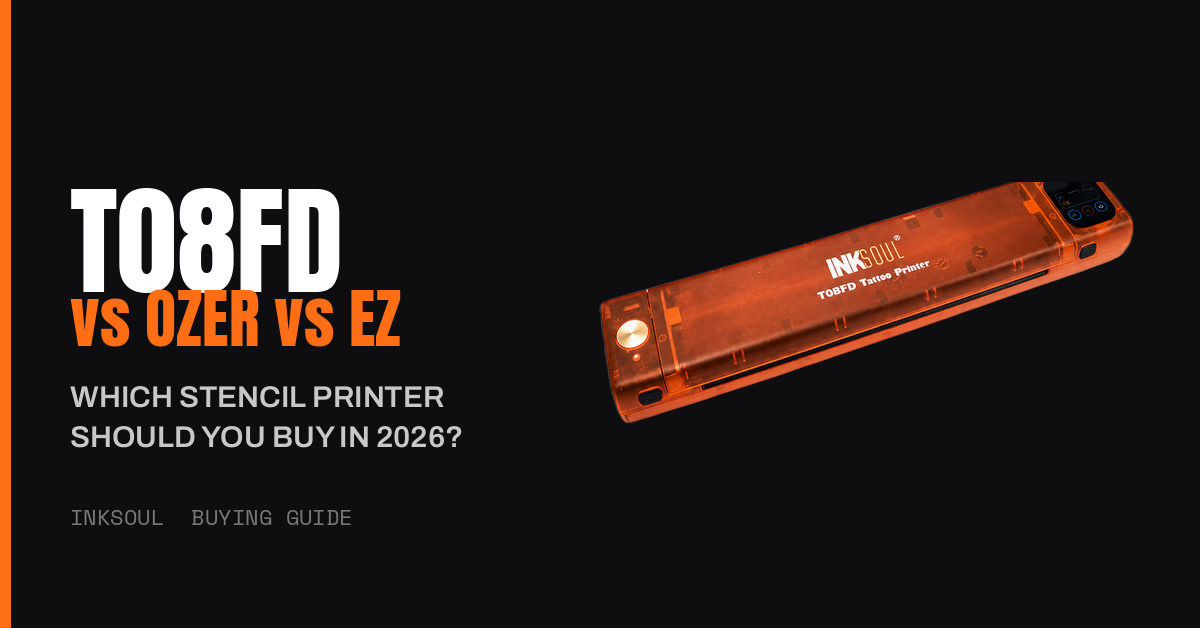
シャドウ印刷は今や必須。INKSOUL T08FDがOzerやEZと違う点:タッチスクリーン操作、フラッグシップの信頼性、連携する転写ワークフロー。おすすめはT08FD。